
Connection & hardware
Why is my Wi-Fi slow? Causes, and how to prove it with a cable
If your speed kept rising and falling on the result card, Wi-Fi is usually responsible. As the signal weakens your device settles for a slower link rate, sharing a channel with neighbouring networks means waiting your turn, and on 2.4 GHz the ceiling is low to begin with. There is one way to be sure: run the same test over a cable. If the result climbs noticeably, the problem is wireless, not your line.
First, the measurement is not wrong
The ups and downs on your card really happened; the test simply recorded them. What is up for debate is not whether the number is accurate, but why it came out that way.
On a wired connection the "peak" and "average" figures land close together, because a cable's capacity does not change from one second to the next. Wi-Fi runs in a shared radio environment where everything moves: signal strength, your neighbours' traffic, the other devices on your own network. The fluctuation the test saw is the fingerprint of that movement.
Three things that slow Wi-Fi down
- Distance and obstacles. As the signal weakens, your device and router agree on a slower link rate on purpose, so the connection does not drop altogether. One wall, a concrete pillar or a metal cabinet in the way is enough.
- Channel congestion. On Wi-Fi only one device can talk on a channel at a time. If your neighbour's network sits on the same channel, everyone takes turns and your share of airtime shrinks. In apartment buildings this is usually what people feel in the evening.
- The wrong band. On 2.4 GHz there are only three channels that do not overlap: 1, 6 and 11. In a busy building all three are taken.
Which band should you use?
Your router almost certainly broadcasts two bands, maybe three. The difference between them is a trade-off between range and speed:
| Band | Range | Congestion | Where it helps |
|---|---|---|---|
| 2.4 GHz | Longest, passes through walls best | High: only 3 clean channels | Devices far from the router, smart-home gear |
| 5 GHz | Medium, weakens noticeably through walls | Low | Phones and laptops on the same floor, speed testing |
| 6 GHz (Wi-Fi 6E / 7) | Shortest | Very low, few devices support it yet | High-speed work in the same room as the router |
Rule of thumb: close to the router use 5 GHz, far from it use 2.4 GHz. At distance a 5 GHz signal can weaken enough to perform worse than 2.4 GHz.
The shortest proof: one test over a cable
No guesswork needed. Five minutes gets you a definitive answer:
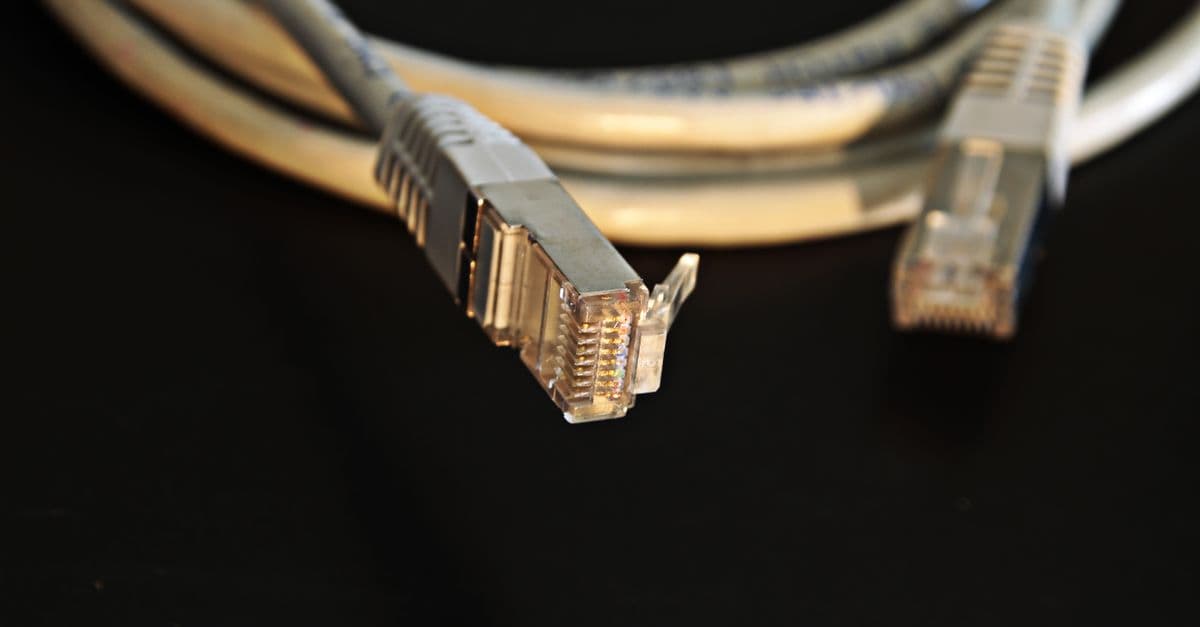
- Connect your computer to the router with an Ethernet cable. Use Cat 5e or better; older cable stays below 1 Gbps.
- Turn Wi-Fi off completely. If you leave it on, some operating systems keep routing traffic over wireless anyway.
- Run the test again. When comparing, look beyond the average speed to the gap between "peak" and average.
- If the wired result is clearly higher and the fluctuation is gone, Wi-Fi is the bottleneck.
- If the two results are close, Wi-Fi is innocent. The problem is in your line or your device.
You cannot run a wired test from a phone or tablet. Do the comparison on a computer with an Ethernet port; the result is your line's capacity and it applies to your other devices too.
Speeding up Wi-Fi: start where the payoff is biggest
- Move the router. On its own this makes the biggest difference, and it costs nothing.
- Put the device you are testing on the 5 GHz network. If your router broadcasts both bands under one name you cannot tell which one it joined; separating the names makes diagnosis much easier.
- Pick the 2.4 GHz channel by hand: whichever of 1, 6 and 11 is least busy. The "automatic" setting rarely chooses well in crowded environments.
- If your router is more than five years old, so is its Wi-Fi standard. A newer one can deliver visibly higher wireless speed on the very same line.
- In a large or concrete-walled home, install a mesh system instead of pushing a single router harder. Spreading the signal beats shouting louder.
Why does placement matter this much? Google puts it plainly for its own Wifi hardware:
“If possible, place your router off the ground and in plain view, like on a shelf or TV stand, and try to choose a central location in your home that's at eye level.”[1]
The same document advises keeping a mesh point no more than two rooms from the router and away from walls, doors and aquariums. Points perform better when they can "see" each other.
A warning about splitting the bands
We suggested separate network names above as a diagnostic step. Do not leave it that way. Apple recommends the opposite for everyday use:
“Make sure that all routers on your network use the same name for every band they support. If you give your 2.4 GHz, 5 GHz, or 6 GHz bands different names, devices might not connect reliably to your network, to all routers on your network, or to all available bands of your routers.”[2]
The two are not really in conflict: separate names let you know which band you measured, a single name lets the device pick the right band by itself as you move around. Put it back once you are done testing.
Wi-Fi hurts responsiveness, not just speed
On weak or crowded Wi-Fi, packets wait their turn and are sometimes resent. That doesn't just lower speed: ping rises, jitter grows and packet loss creeps in (the browser test can't measure packet loss; the HIZTESTI apps also show loss during a test). Even when the speed test looks fine, frozen video calls and stuttering games often come from here; a wired connection fixes all three at once.
On a fast plan such as fibre, Wi-Fi can't fill the line on most devices; see the fibre speed test checklist to see your full plan. If you're not sure where a slowdown comes from, start with the three steps in why is my internet slow.
If Wi-Fi is innocent, look here
- If the wired speed is low too, the issue is not wireless. Check the speed your plan actually commits to, your line, and the router's connection to it.
- If speed is fine but latency spikes under load, that is a different problem entirely. It shows on the result card as "your response time rises under load" and usually comes down to queue management in the router.
- If every test differs and your device feels sluggish in general, the bottleneck may be the device rather than the connection. Close open apps and measure again.
Every definition we use for bufferbloat, RPM and fluctuation is spelled out in our methodology paper. Measurement methodology
Why a wired test tops out at about 94 percent of your plan: Is 100 Mbps internet really 100 Mbps
When ping wobbles, calls and games stutter: What is jitter
How to spot lost packets and reduce them: What is packet loss
Frequently asked questions
- How much does Wi-Fi lower a speed test?
- Quoting a single figure would be misleading. The loss depends on signal strength, the band you are on and how busy nearby networks are. In the same room on 5 GHz the difference stays small; two walls away on 2.4 GHz speed can drop several times over. Only a wired comparison gives you your own answer.
- Is it wrong to run a speed test over Wi-Fi?
- No. A Wi-Fi test shows what that device really gets at that spot, which is how you use the internet anyway. What is wrong is treating that number as your subscription's capacity. To measure the subscription you need a wired test.
- Is switching to 5 GHz always better?
- No. 5 GHz is faster but struggles more with walls. Far from the router your 5 GHz signal can weaken until it performs worse than 2.4 GHz. Close by, use 5 GHz; further away, 2.4 GHz.
- Will a mesh system increase my internet speed?
- Mesh solves coverage, not capacity. If you are slow because the signal weakens at a distance, it makes a visible difference. If you are slow over a cable as well, mesh changes nothing.
- Does restarting the router help?
- Sometimes, but it is not a lasting fix. A restart makes the router pick its channel again; if that channel happens to be free you get a bump, and by evening you are back where you started. If the problem keeps returning, setting the channel manually works better.
Sources
References
Share this guide
Did this guide help?